eWeLink MCP Server
With the release of eWeLink WEB V3.21, a new Prime-exclusive feature, MCP Server is now available. It enables AI clients to integrate with smart devices in the eWeLink ecosystem.
This guide walks you through generating your eWeLink MCP Server URL and configuring it inside an MCP-compatible AI client or AI coding companion tools, such as Cursor. Once connected, the AI client can query and control supported devices through natural-language instructions.
1. Generate your MCP Server URL in eWeLink Web (web.ewelink.cc)
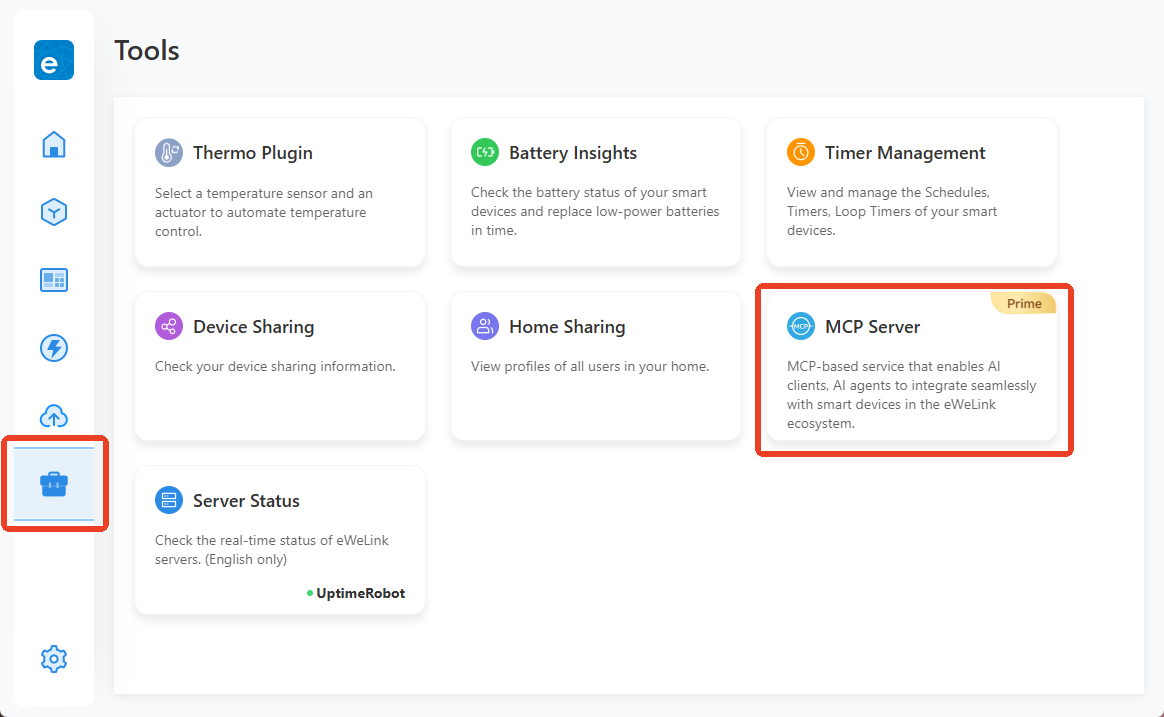
1.1 Log in to eWeLink WEB, go to Tools → MCP Server.
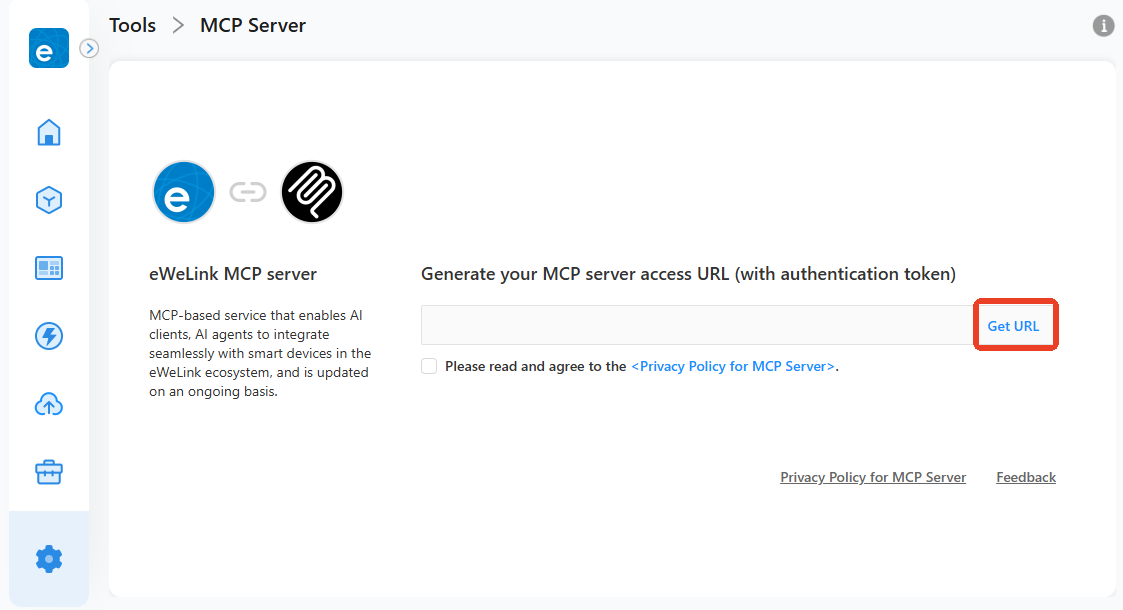
1.2 Click Get URL and copy the generated MCP Server URL.
The URL is tied to your account and contains an authorization token. If unused, it remains valid for 30 days. Please store it securely to prevent unauthorized access.
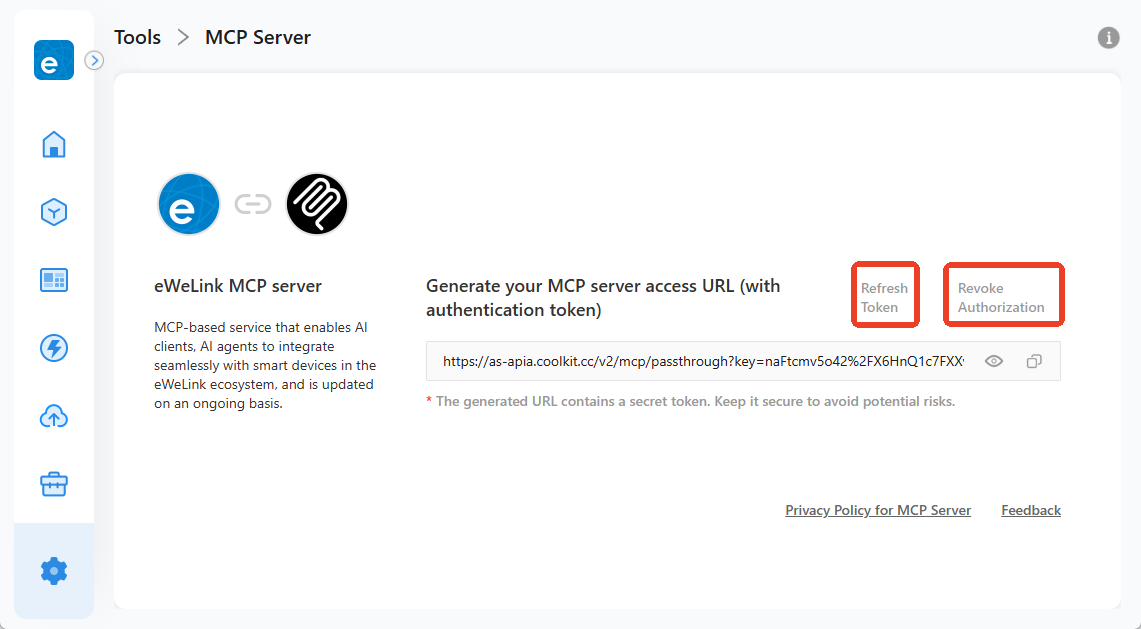
1.3 URL Management(If need):
Refresh: Generate a new MCP Server URL if the current one becomes invalid.
Revoke Authorization: Immediately disable the current URL. All AI clients will lose access until a new one is generated and used correspondingly.
2. Configure the MCP Server in your AI client (example: Cursor)
2.1 Open Cursor.Go to Settings - Tools & MCP - Add New MCP Sever
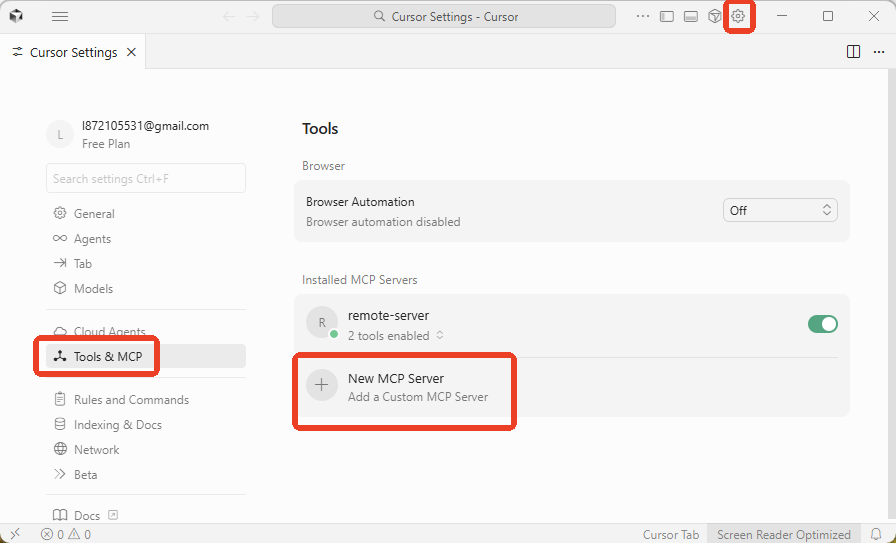
2.2 Add a new remote server entry using the following JSON:
{
“mcpServers”: {
"ewelink": {
"type": "http",
"url": "***The eWeLink MCP server URL generated from eWeLink WEB tools***"
}
}
}
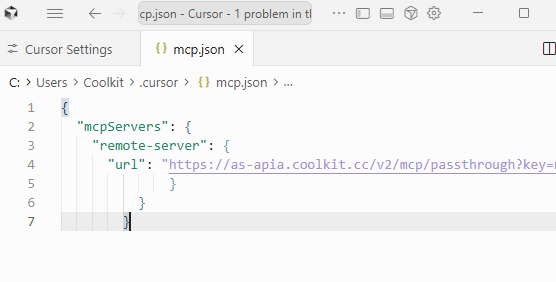
2.3 Save the configuration and open a new chat session. Enabling the “Auto” option in the toolbar is recommended. (Since different AI agent modes may vary in their support of MCP for now, “Auto ”helps select the most appropriate one.)
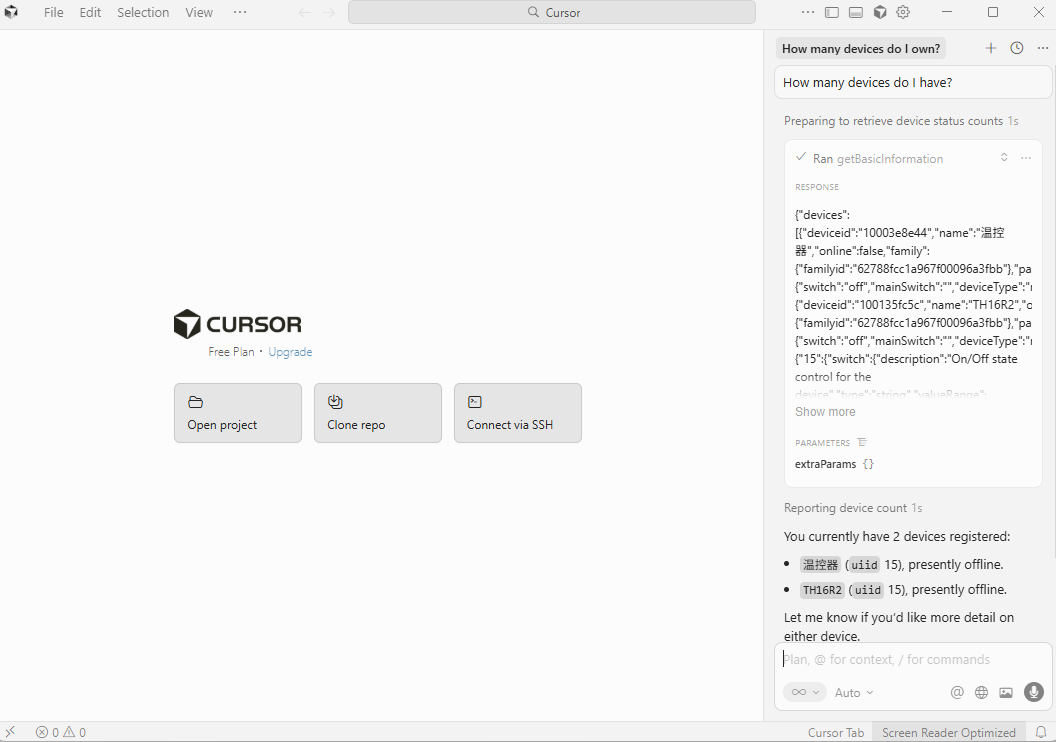
2.4 Here you may enter prompts such as: “How many devices do I have?” or “Turn on the living-room light.”
* Notes on Compatibility and Limitations
The current MCP Server supports only a subset of devices in this initial release. Unsupported devices will not be returned in device-query results, and their capabilities will not be accessible. More devices will be added in upcoming updates.
In addition, different AI agent mode may handle MCP tools with varying levels of compatibility. The same instruction may produce different outputs or fail in certain modes.