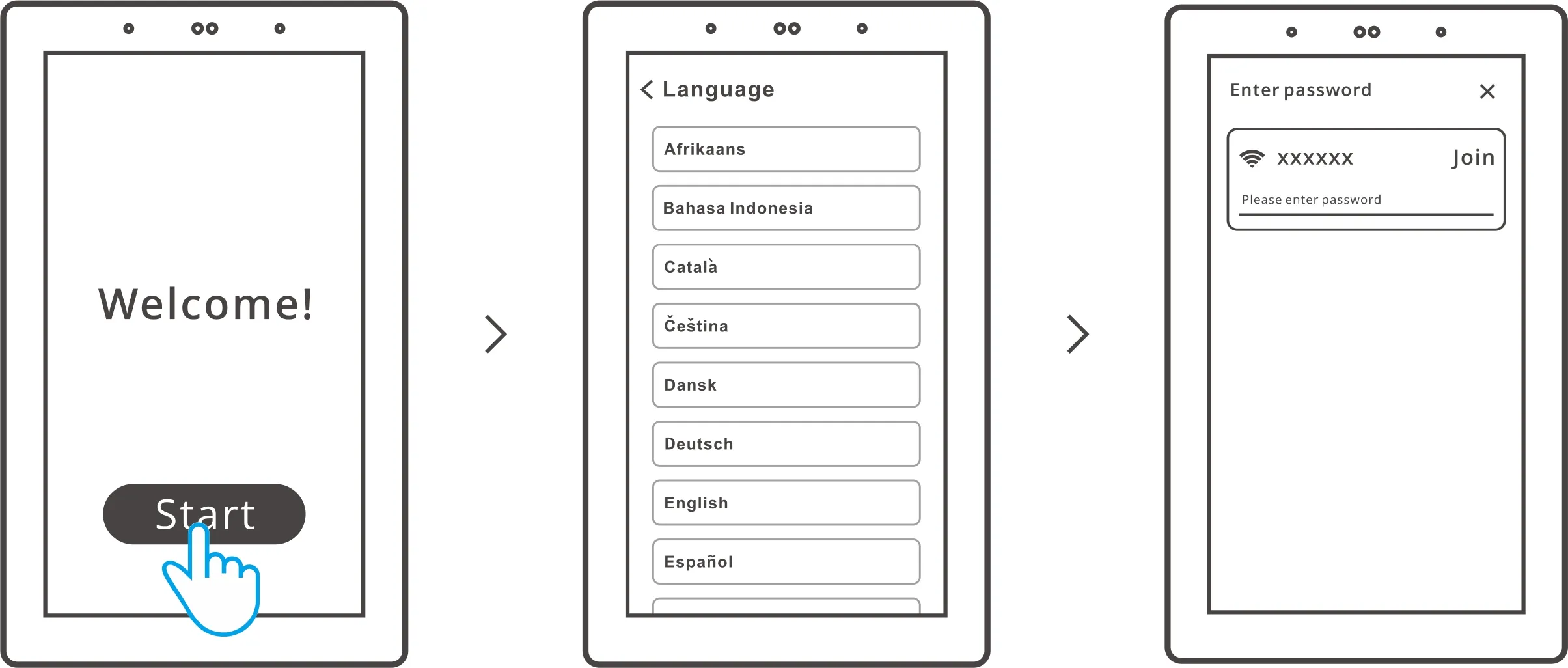
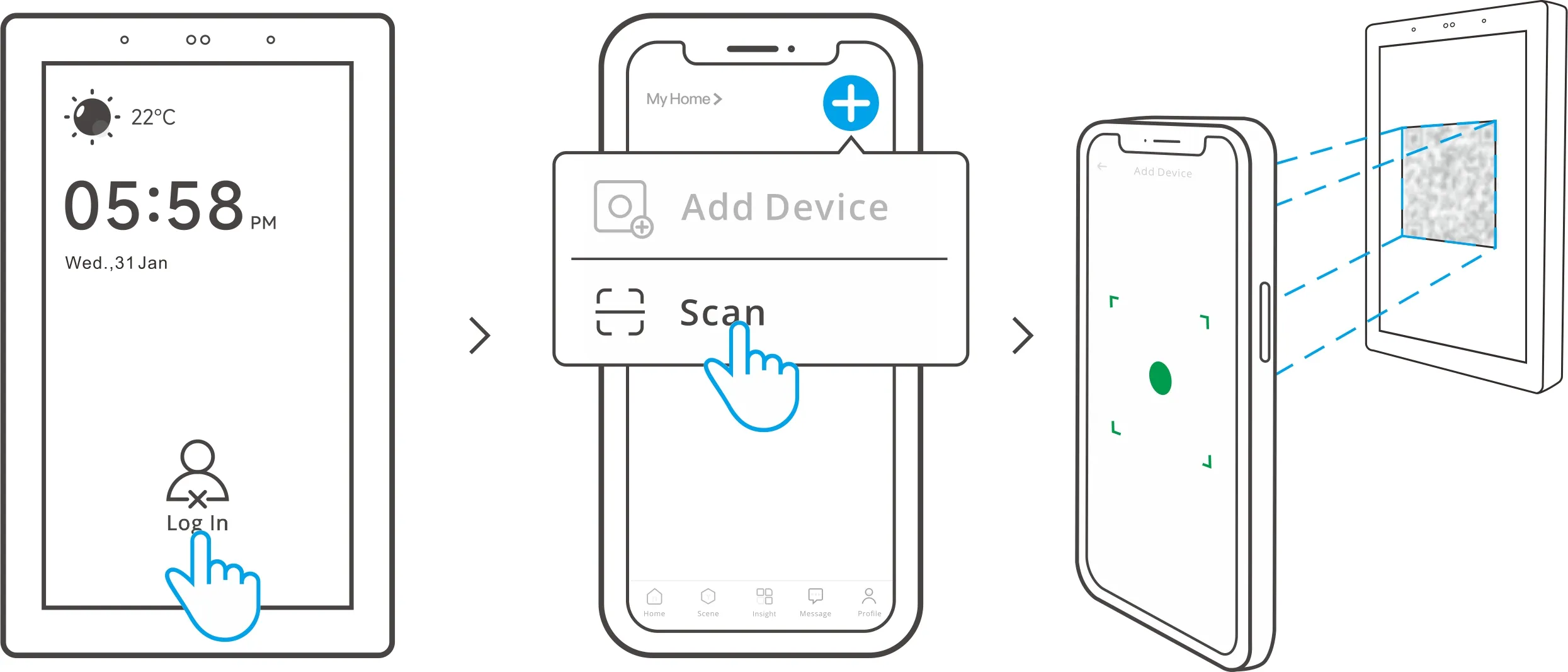
Add Device to eWeLink APP
|
Notice: Adding to the eWeLink APP process is the same for both the NSPanel Pro 86 and 120 versions. The following example uses the 120 version. |
|
|
|
|
|
|
Add Zigbee Device to NSPanel Pro
|
Notice: Adding to the eWeLink APP process is the same for both the NSPanel Pro 86 and 120 versions. The following example uses the 120 version. |
|
|
|
|
Method 1 |
Method 2 |
|
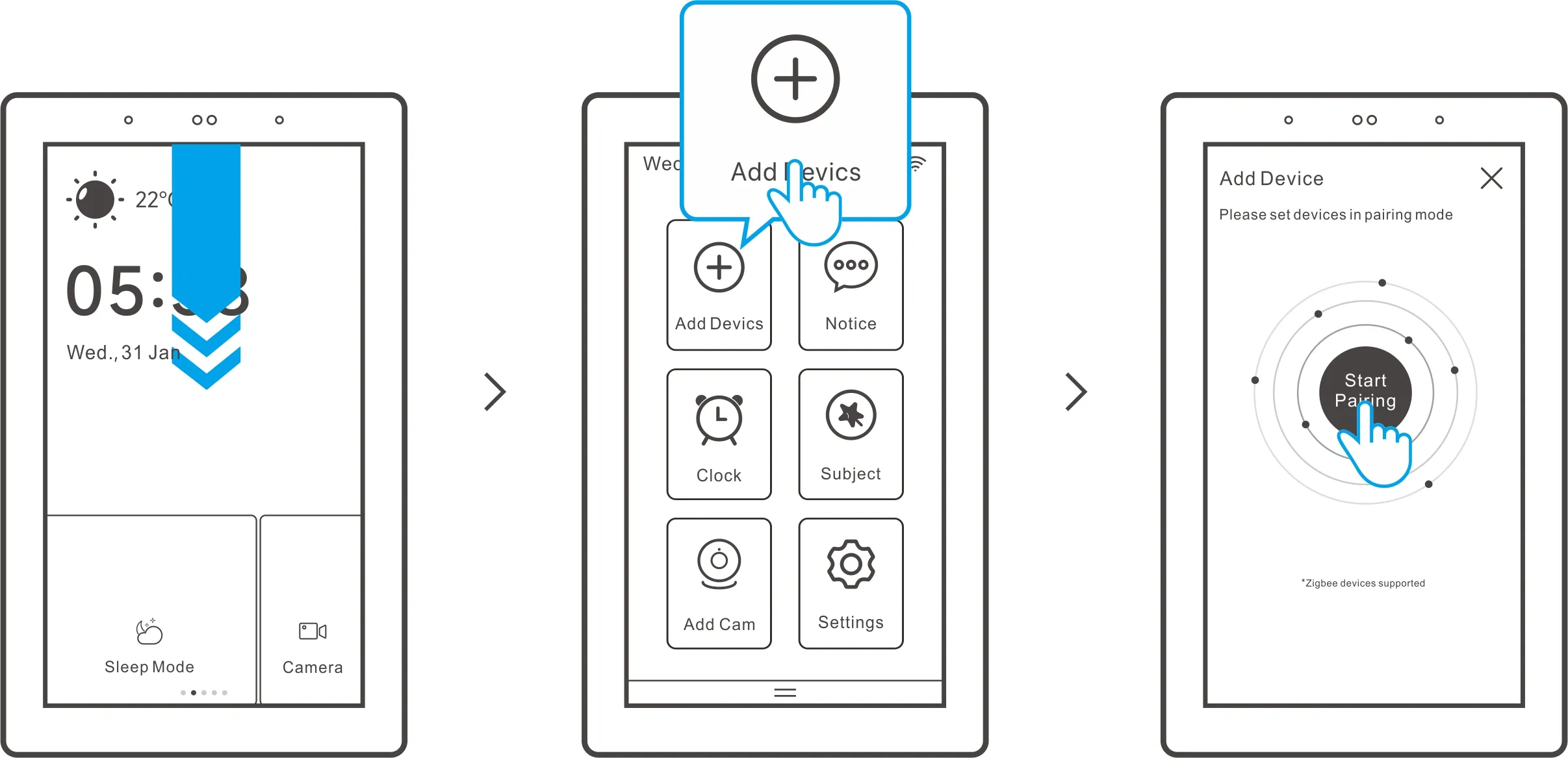
Entry on the central control panel. Then Set the Zigbee device into the pairing mode and complete the adding by following the prompts. |
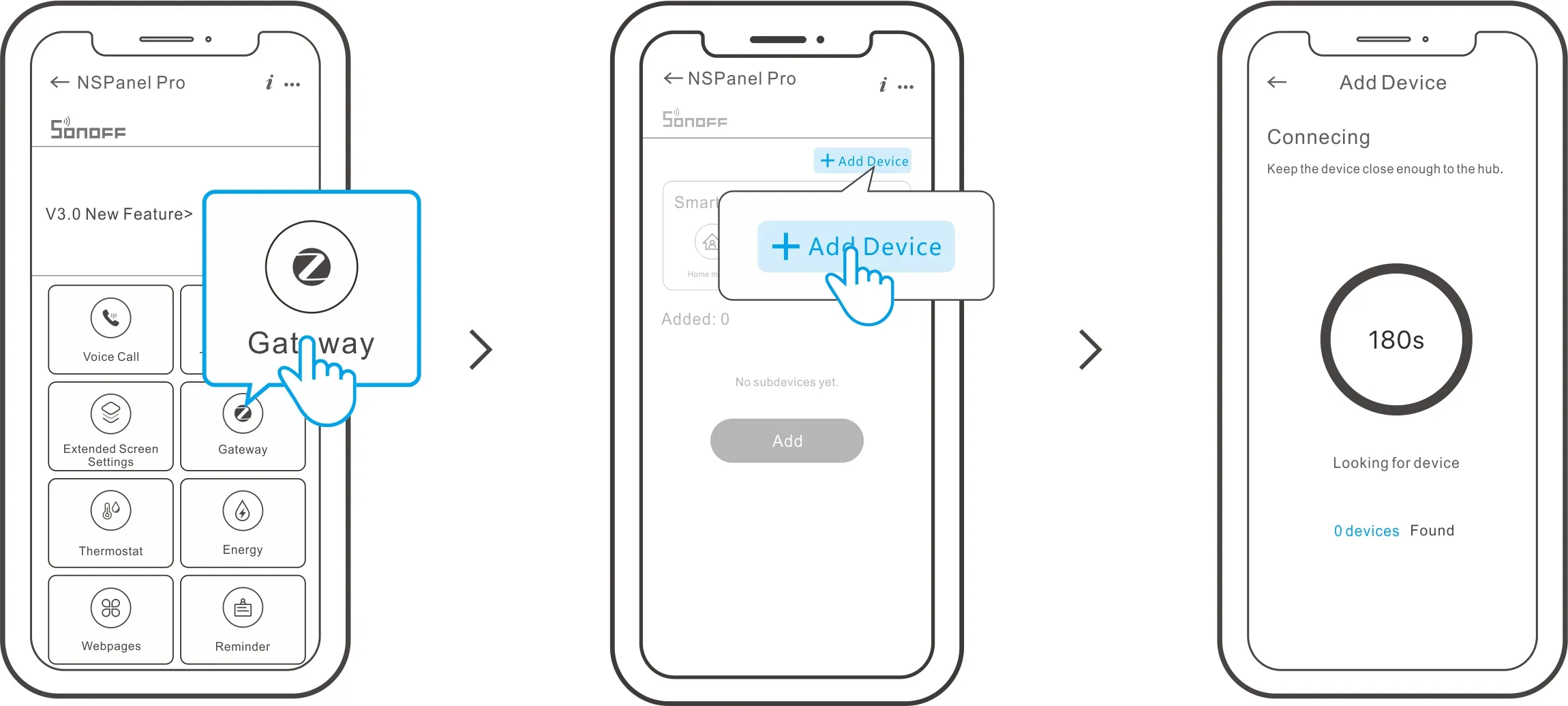
Entry on the eWeLink App. Then Set the Zigbee device into the pairing mode and complete the adding by following the prompts. |